
Make your website useful: turn a contact form into a workflow
Describe what happens after a submission so your site can collect requests and support follow-up.
 Raccog TeamWriter at Raccog5 min readUpdated 23 September 2026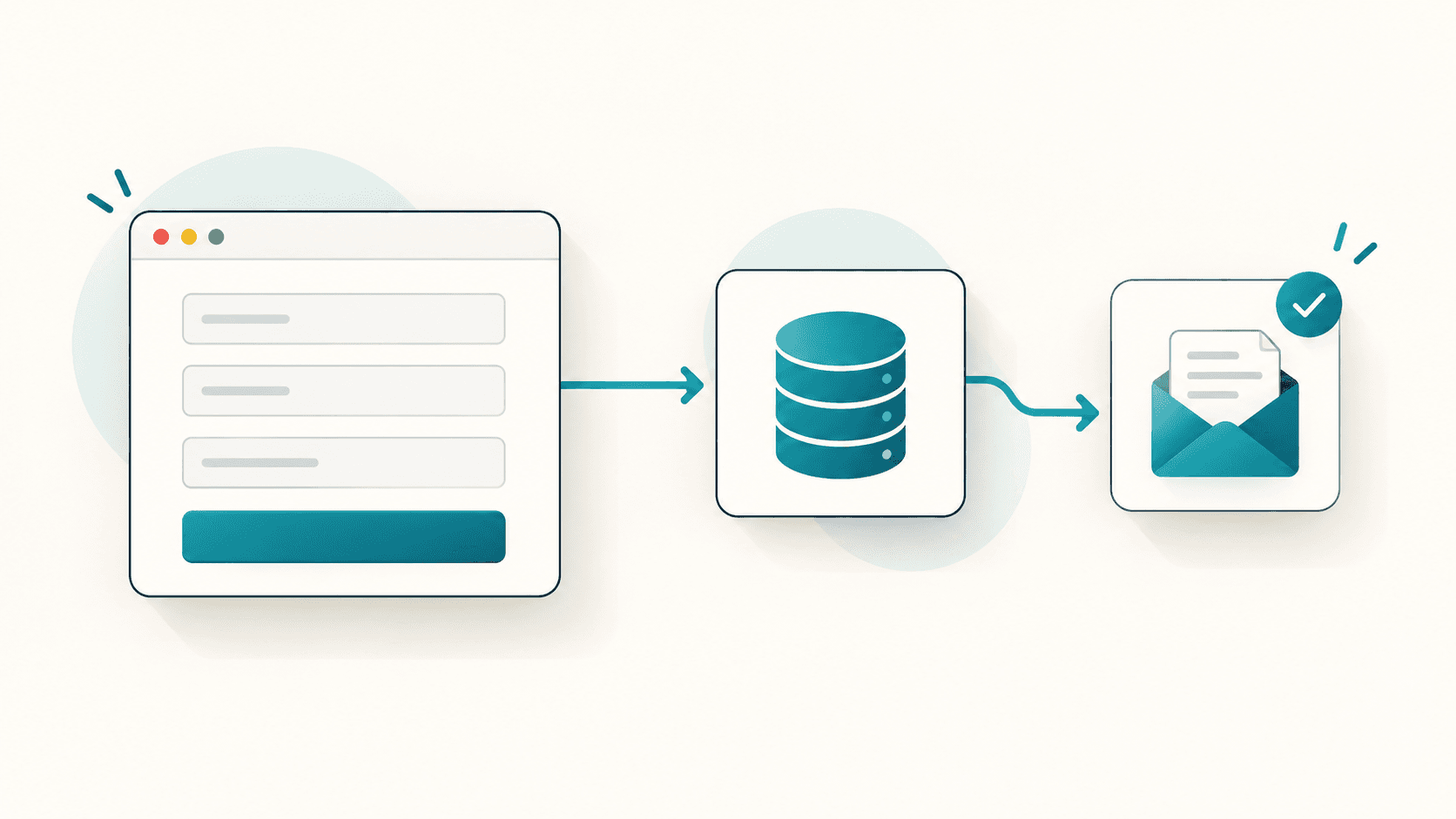
A contact form is only the visible part of an enquiry process. Behind it, a request needs to be validated, saved and brought to someone's attention. Describing that whole journey helps Raccog generate a site with useful behavior alongside its pages.
A form that posts nowhere is the most expensive thing on a small website: it looks finished, it collects real enquiries, and it loses them quietly.
Describe the result after the click
Instead of asking only for a contact form, explain the fields and what should happen when someone submits it.
Add a quote request form with name, email, service and project details. Require an email and a project description. Save each valid submission and notify the site owner by email. Show a success message only when the request has been processed, and show a helpful error if it fails.
Raccog's workflow generation supports tasks such as saving submissions and sending email. The exact workflow depends on your request and the services configured for your project.
Four things are worth stating every time:
- The fields, and which of them are required.
- What counts as valid — an email that looks like an email, a description with actual words in it.
- Where the record goes, and who hears about it.
- What the visitor sees in both the success and the failure case.
Ask for the fields you will actually use
Every extra field costs you submissions. Ask for what you need to reply usefully, and nothing more.
For most service businesses that is: name, a way to reach them, what they want, and roughly when. Budget and company size are worth asking only if you will genuinely route the enquiry differently because of the answer.
If you need one optional detail, say so explicitly, so it does not become another required field:
Add an optional "preferred contact time" dropdown with Morning, Afternoon and Evening. Leaving it blank must not block submission.
Keep the first workflow small
Start with one form and one clear outcome. For example, collect a consultation request, store it and notify the owner. Once that path works, consider additional steps.
Avoid adding a chain of integrations before you have checked the basic submission. External services can require credentials, configuration or their own subscriptions — and each one is another place a submission can vanish.
A reasonable order to build in:
- Form renders, validates and saves a record.
- The owner gets an email that contains enough to reply without opening anything else.
- The visitor gets a confirmation that matches what actually happened.
- Only then: CRM sync, auto-replies, routing rules, scheduled digests.
Test the unhappy paths too
Submit a realistic test request and verify the stored record and notification. Then try an invalid email, an empty required field and a repeated submission. Check that the page gives a useful response without claiming success when a step fails.
Work through this list before the form goes live:
- A complete, realistic submission — record saved, notification received, both containing every field.
- A missing required field — the page says which one, and says it next to the field.
- A malformed email address — rejected before anything is saved.
- The same form submitted twice — you can tell the two records apart.
- A very long project description — it is stored and shown in full, not silently truncated.
- Something pasted with a line break and an apostrophe — it survives into the email intact.
Use test data during setup. A generated workflow still needs review before it handles real customer information.
Write the messages a person will read
The success and error states are part of the form, not decoration around it.
A confirmation should say what happened and what comes next: "Request sent. We reply to quote requests within one business day." A failure should say what went wrong and what to do: "We could not send your request. Try again, or email hello@example.com."
Never show a success message for a submission that was not saved. It is the one error a visitor cannot detect and cannot recover from.
Refine the website and behavior together
If you add a new field, ask for both the form and the workflow to use it. For example, a preferred contact time should reach the saved record and the owner notification, not just appear on the page.
Add the preferred contact time to the saved record and include it in the owner notification email, under the project details.
Keeping those instructions together reduces the gap between what a visitor sees and what happens after submission. The result is a website that supports the next step in your business process.
Common questions
Where do the submissions go? Into your project's stored records, which you can read from the site itself. Ask for a simple list view if you want to review enquiries without opening email.
Can it send an automatic reply to the visitor? Yes — ask for it explicitly, and keep it short and factual. An auto-reply that promises a response time you cannot meet is worse than no auto-reply.
What about spam? Start with required fields and validation, which removes most low-effort submissions. Add stronger checks once you see what actually arrives.
Do I need to handle personal data carefully? Yes. A contact form collects personal information. Only ask for what you need, say on the page what you will use it for, and delete records you no longer need.
Try it on your own brief.
One sentence about the business, and Raccog drafts the whole site.
Read next